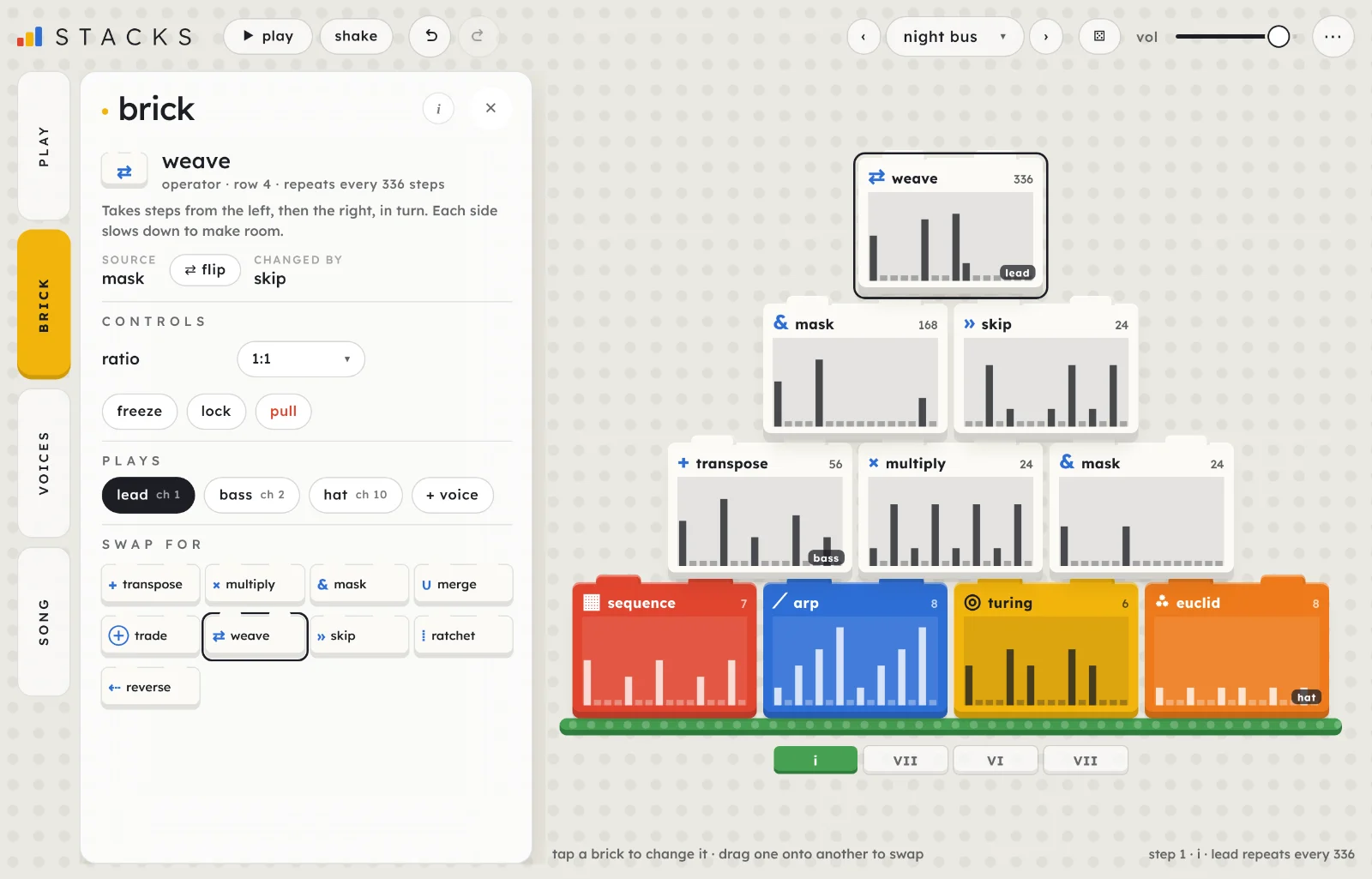
Stacks is a generative sequencer you build from bricks. The bottom row makes patterns, and every brick above combines the two beneath it. The bricks are different lengths, so even a small stack plays for a long time before it repeats.
Start here
Five steps to a pattern of your own. Stacks runs in Chrome, Edge and Safari, on a computer or an iPad.
Open Stacks and tap begin. The first time, a short intro shows you around; you can skip it. Begin starts the stack playing. Browsers only allow sound after a tap or a key press, so nothing plays until you do.
Listen to the top brick. In the starting stack, first stack, the top brick plays the lead, a brick in the second row plays the bass and a bottom-row brick plays the hat. Each brick that sounds has a small tag on it.
Tap the top brick and pick another kind under swap for in the brick tab. The lead changes at once, because the top brick now combines the two bricks under it another way.
Press shake (or S) in the header. The bottom-row bricks that can re-roll get new patterns, and everything above them follows.
Try another stack.‹› at the top step through the presets, and ⚄ (R) grows a whole new one. While it plays, the new stack comes in at the next bar.
TipEverything you change is one undo step. ⌘Z (or the arrow at the top left) takes it back, so you can try anything.
The screen
Controls on the left, the stack on the right, and play and shake in the header. Everything on screen, numbered:
Undo and redo. Every change to the stack, its settings or the song is a step (⌘Z, ⇧⌘Z).
Presets.‹› step through them, the name opens the list. More.
⚄ grows a whole new random stack: new bricks, voices and settings (R).
vol, the volume of the built-in sounds. It isn't saved in presets.
⋯ has init: a blank stack, back up stacks and restore stacks…, back up songs and restore songs…, hide ui, how to play (the keys), this guide, the intro and what's new. While a MIDI output is chosen, a panic button sits next to it. More.
A brick: what kind it is, its length, its next 16 steps and the voices that play it. More.
The bottom row: the bricks that make patterns. Every row above combines the row below.
The chord row, when chords are on: the progression, with the chord playing now lit. Tap one to change it.
The hint line: what you can do, or what the control under the pointer does.
The step readout: the step playing now (and the loop length), the chord, and how long the first voice takes to repeat.
On a narrow window
On a phone or a narrow window play and shake stay in the header, the presets move onto a row of their own under it (play drops its word), the hint line and step readout are hidden, and the bricks get smaller: a small brick drops its name and keeps its glyph, and a tiny one drops its step count and tags too. Everything else is the same. Stacks is made for an iPad or a computer first.
How Stacks works
The bottom row makes patterns. Each bottom-row brick is a generator: it plays a short run of steps, some sounding and some silent, each with a pitch. A sequence is a fixed random run, an arp walks a chord, a euclid spreads hits evenly, a steps brick is one you draw. There are eight kinds (the generators).
Every brick above combines the two below it. A brick above the bottom row is an operator. It reads the two bricks under it: the left one is the source and the right one changes it. mask lets the left brick play only where the right one plays; transpose moves the left brick's notes by the right brick's pitch. ⇄ flip swaps which side is the source. There are nine kinds (the operators). Operators stack on operators, so the top brick hears everything below it.
Different lengths make long cycles. Each brick loops at its own length. A 5-step brick under a 7-step brick only lines up again after 35 steps, and a few rows of that can run for thousands of steps before the top brick repeats. The number on each brick is that count. A loop restarts every brick together, when you want it to repeat sooner.
Pitches are scale steps. Bricks count in steps of the scale, not in semitones, so every note lands in the key and scale you pick. Chords move every pitched note through a progression on top of that.
Voices make bricks heard. A brick makes no sound of its own. A voice plays one brick, with a built-in sound and a MIDI channel. Any brick can have voices, in any row, up to eight in all (voices). A brick with no voice still shapes the bricks above it.
Playing it
Stacks plays itself. You build the stack, choose what sounds, and change it while it runs. play in the header (or space) starts and stops it.
The built-in sounds
Each voice plays one of five sounds: lead (a bright, plucked synth), bass, kick, hat and silent (MIDI only). They're simple on purpose: enough to hear what the stack is doing. One shared echo sits on top, and each voice sets how much it sends to it. For other sounds, send MIDI to a synth.
MIDI out
Pick a MIDI output under midi out in the voices tab and every voice plays on its own MIDI channel too: lead on 1, bass on 2, drums on 10 by default. Each voice's level sets its velocity, and notes on the beat are a little louder. Ratchets, chords and gate lengths all go out over MIDI. The echo doesn't: MIDI is dry.
Stacks remembers the output and reconnects to it next time. While an output is chosen, a panic button appears at the top right: it stops playback and sends all notes off on every channel. esc does the same when no menu is open and the controls are showing.
BrowsersMIDI out works in Chrome and Edge. Safari doesn't support it, so on a Mac use Chrome, and on an iPad the built-in sounds are what you hear. Chrome asks permission the first time.
Changing it while it plays
Swap, drag and pull bricks: every change is heard on the next step.
shake re-rolls the generators, and drift changes the stack by itself at bar lines.
A preset you pick comes in at the end of the loop or the next bar (cueing), and a song plays labelled sections in turn.
The stack
The right-hand side of the screen: the bricks on their green slab, the chord row, and play and shake underneath.
Each brick shows its next 16 steps. The outlined first bar is the step playing now.
Reading a brick
glyph and name
What kind of brick it is. Bottom-row bricks are coloured; operators are white with a blue glyph. A flipped operator's glyph is drawn mirrored.
the numbersteps, or ∞
How many steps it plays before it repeats. ∞ means it never quite repeats (a walk that keeps walking, a chance brick that evolves, or a cycle too long to count).
the bars
Its next 16 steps. A tall bar is a high note, a low stub is a rest. While it plays, a frame marks the step sounding now and the brick brightens on each note. A ratchet shows as a bar split in two to four.
voice tags
One tag for each voice that plays the brick (lead, bass 2…). A dot after the name means that voice is muted.
frozen · lock
Tags for a brick that's frozen or locked. A frozen brick is striped too.
Tap, drag and pull
tap
Selects a brick and opens the brick tab on it. It lifts and gets an outline. With the brick tab open, the bricks that don't feed it or read from it are dimmed, so you can see its family.
double-tap
Pulls the brick out, leaving an empty slot. ⌘Z brings it back.
drag
Drag a brick onto another in the same tier to swap them: bottom-row bricks with each other, operators with each other. The slots it can go to are outlined as you drag. Voices go with the brick they play.
hold, then drag
Hold a brick still for a moment and it lifts as a copy: drop it on another slot to put the same brick there. With a mouse, alt-drag copies too. A copy isn't locked and has no voices.
Empty slots
A pulled brick leaves a dashed slot with a +. Tap it to pick a brick for it in the brick tab, or drag one there from the tray. An operator with an empty slot under it reads rests from that side. init: a blank stack (N) starts from a stack that's all empty slots, three wide, with the default play settings, no echo and one lead voice waiting: the first brick you place gets it, so it sounds straight away.
init: every slot empty. The brick tab offers what can go in the selected slot.
The chord row
When chords are on, a row of tiles under the slab shows the progression, one tile per chord, with the one playing now in green. Tap a tile to pick another chord for that place, or remove it. Changing a chord turns the progression into your own (custom).
Play, shake and the hints
playspace
Starts and stops the stack. It reads stop while it plays. Play again and it carries on from the step where it stopped.
shakeS
Re-rolls every unlocked, unfrozen bottom-row brick that can: sequence, turing, walk, motif and chance. Arp, euclid and steps have nothing random to re-roll, so they stay. The bricks above keep their kind and controls and follow the new patterns.
the song stripwith a song
Once the song has a section, a row of blocks appears under the stack, one block for each section. A block shows its label and, past 1, ×4 for how many loops (or bars) it plays; the longer the section, the wider the block, and sections on the same stack share a colour. The section playing is outlined and fills as it goes. A long song scrolls sideways inside the strip.
Tap a block to jump there. It comes in at the end of the loop or the next bar, dashed with a countdown until then, and the song carries on from it. Tap the dashed block again to jump at once. Stopped, a tap plays the song from that section; with a stack playing and no song, it starts the song there. Tapping the block that's playing does nothing.
On a phone the strip shrinks to one pill, like chorus 2/4, that opens the song tab.
holdH
At the end of the strip. On, the song stays on the section playing and plays it again and again, marked ↻. Off, the song moves on at the next end of the loop or bar, once the section has played its length. Jumping, stop song, stopping playback or picking a preset by hand turns it off. It isn't saved and undo doesn't touch it.
the hint line
What you can do here. Point at a control and it says what that control does.
the step readout
The step playing now (step 9 / 32 with a loop), the chord, and with no loop how long the first voice's brick takes to repeat (lead repeats every 336). While a song plays it starts with the section and its place, like chorus 2/4.
The song under the stack: the chorus is playing and held.
hide ui
⋯ › hide ui (or I) fades the header, tabs, drawer and dock away and leaves the stack. The bricks still work: tap, drag and double-tap as usual. Two fingers, I, esc or the ⋯ button in the corner bring the controls back.
hide ui: only the stack is left.
The bricks
Eight kinds make patterns on the bottom row and nine combine them above. Each has its own controls in the brick tab. Pitches below are scale steps above the key's root (0 is the root); a voice folds them into its own range.
Generators: the bottom row
▦sequence
A fixed run of random steps. Density and range reshape the same run rather than drawing a new one, so you can turn them and come back. re-roll draws a new run.
length 2 to 16: steps before it repeats.
density 10 to 100%: how many of the steps play.
range 1 to 12 notes: how many scale notes the steps spread over.
◎turing
A looping register that rewrites itself. Each time round, each step may change. It goes back to its starting pattern when a loop restarts or the stack loads.
length 2 to 16: steps before it loops.
chaos locked, then 1 to 100%: the chance each step changes when the loop comes round.
A chaos of about 5% gives a riff that changes a note now and then.
⟋arp
Walks a chord of the scale, one note per step.
chord triad, seventh, sus or fifths.
direction up, down, bounce or random.
octaves 1 to 3: how far the chord spans.
rate every step, or 1 in 2, 3 or 4.
⁂euclid
Spreads its hits as evenly as it can over its steps: 3 hits in 8 is the tresillo. One note only, so it works best as a rhythm under mask, trade or skip, or for a drum voice.
hits 1 to 16.
steps 2 to 16: how long the cycle is.
rotate 0 to 15: where the cycle starts.
pitch root, or +1 to +7 steps.
⊞steps
Your own steps, drawn in a grid of 16. Tap a column to turn that step on, at the height you tapped, or off; drag across to paint notes. Higher is a higher note (0 to 14 scale steps). The columns past its length are dimmed.
length 2 to 16: how many of the 16 steps it plays before it repeats.
pattern: fills it with a drum pattern for the current time: four on the floor, half time, backbeat, off-beats, eighths, sixteenths, tresillo or clave. One bar long (cut to 16 steps in 5/4).
random fills it at random; clear turns every step off and keeps their heights.
For drums, put a steps brick with a pattern on the bottom row and give it a kick or hat voice.
∿walk
A melody that moves up or down a little each note, bouncing between the bottom and the top of its range.
length 2 to 16: notes in a phrase.
moves up to 1 to up to 4 scale notes from one note to the next.
range 2 to 14 notes: how far up it can go before it bounces back.
density 30 to 100%: how many steps play.
each time repeats (the same phrase) or keeps walking (each phrase starts where the last ended, so it never repeats).
♪motif
A short phrase, then a rest, that changes each time round.
notes 3 to 8: how many notes in the phrase.
rest none, or 1 to 8 steps of silence after it.
changes develop (as is, upside down, backwards, then both), climb (a step higher each time), mirror (as is, then upside down) or still (the same every time).
⚄chance
Picks each step's note by weighted chance and decides whether it plays by density. Pitch and rhythm are rolled separately, and each can repeat or evolve.
length 2 to 16: steps in one phrase.
range 1 to 14 notes: how many scale notes it can choose, from the root up.
density 0 to 100%: the chance each step plays.
pitch and rhythm repeat or evolve: the same pitches (or gates) every phrase, or new ones each phrase.
note weights: one fader per note of the scale (root, 2, 3…), 0 to 100. A higher fader makes that note more likely; 0 leaves it out. Above an octave the weights repeat. All at 0 makes rests.
pitch ↻ and rhythm ↻ re-roll one side and keep the other; re-roll does both.
Root and fifth high, the rest low, and pitch on repeat: a bass line that stays put while you re-roll its rhythm.
A steps brick: draw in the grid.A chance brick: a fader per note of the scale.
Operators: the bricks above
Left is the source, right changes it, and flip swaps them.
+transpose
The left brick's rhythm, its pitch moved by the right brick's pitch.
amount ×−2 to ×3: how far the right brick's pitch moves the left. ×1 adds it, ×2 doubles it, ×−1 turns it upside down, ×0 ignores it.
shift −7 to +7 steps: moves every note by a fixed number of scale steps.
×multiply
The left brick's rhythm, its intervals stretched by the right brick's pitch, so its melody leaps wider.
up to ×2 to ×4: the widest the intervals can stretch.
The wildest of the operators: keep it low in the stack, or under a mask.
&mask
The left brick plays only where the right one also plays: its notes, the right brick's rhythm.
invert off or on. On, the left brick plays only where the right one is silent.
∪merge
Plays wherever either brick plays.
wins left or right: whose note plays when both bricks play.
⊕trade
Plays where exactly one brick plays, with that brick's note: call and response.
answer −7 to +7 steps, or as is: moves the right brick's notes (the answer) up or down.
⇄weave
Takes steps from the left, then the right, in turn. Each side slows down to make room, so both phrases are heard whole.
ratio 1:1, 2:1, 3:1, 1:2 or 1:3: how many steps from the left, then from the right.
»skip
When the right brick plays, the left one jumps ahead (or back) by an amount set by the right brick's pitch.
jump up to 1 to up to 8 steps: the furthest it jumps.
direction ahead, or back (a stutter).
⁞ratchet
The left brick's notes, played two to four times within their step wherever the right brick plays. Over MIDI too.
repeats ×2 to ×4.
when right plays, or always (every note).
⇠reverse
The left brick played backwards, a window at a time. The right brick decides which windows flip.
window 4 steps, 8 steps, a bar or 2 bars: how long a stretch plays backwards.
when right plays (a window flips when the right brick plays at its start), or always.
play tab 1
How the whole stack plays: its speed, key and bar, a loop, chords, drift and how wide it is.
tempo50 to 200 bpm
The speed. Each step is a sixteenth note at this tempo.
keyC to B
The note the scale starts on. Every brick's 0 is this note.
scaledorian · minor · major · phrygian · lydian · pent. minor · pent. major
The notes every brick lands on. Bricks count in scale steps, so changing the scale changes every melody but keeps its shape. In a pentatonic scale an octave is five steps, not seven.
time4/4 · 3/4 · 5/4 · 6/8 · 7/8
The time signature: how long a bar is and where its beats fall. Cues, chords, drift and the roll follow it, drums and MIDI notes on the beats are a little louder, and the drum patterns of a steps brick fall on its beats. Bricks don't change length with it, so a 16-step brick in 7/8 drifts across the bar line.
loop & chords
loopoff, or 8 to 128 steps
Restarts every brick together after 8, 16, 32, 64 or 128 steps, so the stack repeats exactly (turing bricks go back to their starting pattern too). Off lets the long cycles run. A cued preset comes in at the end of the loop.
chordsoff · I vi IV V · I V vi IV · vi IV I V · I IV · ii V I I · i VII VI VII · i iv v i · custom
Moves every pitched note through a chord progression, a scale step at a time: on the IV chord, every note is three scale steps higher. Drums don't move. The chords keep moving through a loop, so a short loop sounds over the whole progression. custom plays your own.
each chord1 bar · 2 bars · 4 bars
How long each chord lasts.
edit · your chordsup to 8 chords, I to VII
Shown when chords are on: one button per chord. Tap one to pick another chord (I to VII) or remove it; + adds one. Editing a progression copies it into your own and switches chords to custom, and the row then reads your chords. Your chords are saved with the stack.
drift
driftoff, 1 to 100
The stack changes itself while it plays, at bar lines. Low, it changes something every 16 bars or so; at 100, every bar. Each change picks one brick and re-rolls it, nudges one of its controls, or (more often as drift rises) swaps an operator for another kind.
Drift leaves locked and frozen bricks alone, and never touches the brick open in the brick tab. Its changes aren't undo steps, and drift isn't saved in presets: it's a way of playing, like the volume.
Lock the bricks that carry the groove, then let drift wander through the rest.
base
bricks3 bricks · 4 bricks · 5 bricks
How many bricks sit along the bottom, and so how tall the stack is (three, four or five rows). Growing it keeps every brick and fills the new slots with default bricks; shrinking it drops the bricks on the right and the top row.
brick tab 2
The brick you tapped: what it reads, its controls, which voices play it, and what to swap it for. Its own controls are in The bricks.
the heading
The brick's name, whether it's a generator or an operator, its row, and how many steps it plays before it repeats. A line under it says what it does.
inputs
source · changed by
For an operator: the brick it takes its notes from (the source) and the brick that changes them. Empty means a pulled slot.
⇄ flipon / off
Swaps which brick is the source. A mask flipped plays the right brick's notes in the left brick's rhythm.
controls
controls
The brick's own sliders and choices. A frozen brick's are greyed out until you unfreeze it.
re-roll
A new random pattern for this brick, keeping its controls. Shown on sequence, turing, walk, motif and chance.
copy to steps
Turns a bottom-row brick into a steps brick holding the phrase under the playhead (up to 16 steps), so you can edit it note by note. Its voices and lock stay. Undo brings the original back. A phrase with ratchets can't be copied.
freezeF
Holds the next 16 steps it would play and loops them, while the bricks around it keep moving. The button reads frozen; tap again to let go.
Freeze a turing brick when its register says something you like.
lockL
Keeps drift and shake away from it. Reads locked while on. You can still change it by hand.
pull⌫
Takes it out, leaving an empty slot. So does a double-tap on the brick.
plays
plays
One button per voice, with its MIDI channel. A dark one plays this brick. Tap a voice to move it onto this brick; tap it again to stop it playing anything. A voice plays one brick at a time.
+ voicelead · bass · kick · hat · silent
Adds a voice on this brick with the sound you pick. Up to eight voices.
swap for
swap for
Every kind of brick for this row. Tap one to swap it in, with its default controls; the brick keeps its voices and lock. Or drag one from here onto any slot in the same tier (on a touch screen, hold it first so the drawer can still scroll). On an empty slot this reads choose.
On a bottom-row brick: no inputs, and re-roll and copy to steps.
voices tab 3
What you hear. Each voice plays one brick, with a built-in sound and a MIDI channel. The overview lists them all; tap a name to open one.
next four bars
Every note the voices will play over the next four bars, one colour per voice, drums along the bottom. Bar lines follow the time. It stays at the top in both views.
+ add voicelead · bass · kick · hat · silent
Adds a voice on the selected brick, with the sound you pick, and opens it.
each voice
its name
The sound, numbered when there are two of the same (lead 2). Tap it to open the voice. Under it: the brick it plays and its row, note, chord or drum, and its channel.
mute
Silences the voice, over MIDI too. Its tag on the brick gets a dot.
level0 to 100
How loud it is. Over MIDI, its velocity.
MIDI output and echo
midi outoff, or a MIDI output
Where the MIDI goes. Off plays only the built-in sounds. See MIDI out.
echo0 to 100
The level of the shared echo: a dotted-eighth delay that follows the tempo. Each voice sets how much it sends with its own echo.
One voice
Tap a voice's name to open it. ‹› step through the voices, and ‹ voices at the top goes back to the overview. The controls a voice doesn't use are left out: drums have no output, gate or range, a silent voice has no tone or echo, and the harmony group shows only with chord output.
mix
level0 to 100
As in the overview. mute is beside it.
bright · length0 to 100
On a lead or bass, bright opens its filter. On a kick or hat, length sets how long it rings.
echo0 to 100
How much of it goes to the echo. A new lead starts at 100, everything else at 0. Built-in sounds only.
playback
soundlead · bass · hat · silent · kick
The built-in sound. A kick or hat plays one fixed drum note on every step its brick plays, and ignores the brick's pitch. silent plays only over MIDI.
plays
The brick it plays and its row. show selects that brick. To change it, select another brick and tap this voice under plays in the brick tab. A voice from a stack saved with a fixed drum pattern shows a list here instead: pick a brick to move it onto one.
outputnote · chord
One note per step, or a chord built on it from the scale. Chord shows the harmony controls below.
gate5% step to 1 step, then 2 steps, 1 beat, 2 beats, 1 bar, 2 bars
How long each note lasts. The left half of the slider slides smoothly up to a whole step (a share of each ratchet hit); the right half clicks through the longer lengths. Beats follow the time signature. Longer gates let the built-in sounds ring on and hold MIDI notes.
2 beats with chord output turns a busy brick into held chords.
pitch
octave−3 to +3
Moves it up or down in octaves.
range1 to 3 oct
How many octaves its notes spread over before they fold back down to the bottom.
harmony
rootfollow brick · follow progression
Follow brick builds each chord on the brick's note (moved by the progression). Follow progression keeps the brick's rhythm but builds every chord on the progression's chord, ignoring the brick's pitch.
shapetriad · seventh · sus · fifths
The chord, in scale steps: 1 3 5, 1 3 5 7, 1 4 5 or 1 5. Pentatonic scales use their own five steps.
inversion0 to 3
Moves the lowest notes of the chord up an octave, one per click. It goes up to one less than the number of notes in the shape.
MIDI
channelch 1 to ch 16
The MIDI channel it plays on. Drums start on 10, the General MIDI drum channel; the kick plays MIDI note 36 and the hat 42.
remove voice
Takes the voice away. Undo brings it back.
song tab 4
Sections in the order they play, each with a label like verse or chorus, playing a stack for a number of loops (or bars, if it has no loop).
play song
Plays the list from the top, starting playback if it's stopped. While it runs, the section playing is outlined in green and fills as it goes, and the button reads stop song: that ends the song and leaves the stack on screen playing. Stopping playback stops the song too. The step readout starts with the section's label and place, like chorus 2/4.
repeaton / off
On, the song goes back to the top after the last section. Off, it stops there and the last stack plays on.
keep tempo & keyon / off
Holds the tempo, key and scale as sections switch, so each stack plays at yours instead of its own. The same setting is in the preset list.
songsreads the song's name
The pill shows the name of the song on screen, untitled song until you save it. Tap it for the songs you've saved, with how many sections each has. Tap one to open it; ✕ deletes it, after asking. Opening a song replaces the one on screen in a single undo step, so undo brings the old one back. If a song is playing it stops, and the stack on screen keeps playing.
save song…
Asks for a name (up to 40 characters) and keeps the song, with every stack in it, in this browser. Saving under the same name replaces it. Songs are kept apart from your saved stacks, so the preset list never shows them. The name stays on the song, and undo takes it back.
share
Opens four choices.
copy code copies the song as a line of text starting stacks-song1.. A song with many stacks makes a long code, and some apps cut a long line short when you paste it, so send a file instead if a code won't open. paste code… opens a box: paste a code and press open. export file writes the song as night-drive-song.json, named after the song. import file… opens a song file, or a songs backup, which it restores.
A song replaces the one on screen however it arrives, in one undo step. A code over 512 KB or a song file over 1 MB is refused, and so is a song with a stack Stacks can't read, a section with no stack, no sections or more than 32. Nothing changes when a song is refused. A song from a newer Stacks is refused with a message saying so.
Stack codes and song codes don't mix: paste a song code here, in the song tab, and a stack code in the preset menu. Each says where the other goes.
+ section
Adds the stack on screen as a new section at the end, for 4 bars or loops. The first section is labelled intro, the rest verse. Up to 32 sections.
each section
⋮⋮
Drag the grip to move the section. Or focus it and use ↑↓.
▶
Plays the song from this section.
labelintro, verse, chorus, bridge, outro, your own
Names the section. Pick one of the five, or your own… for up to 24 characters of your own words. Undo takes a label back.
stack
The stack this section plays. When other sections play the same stack, a small number shows how many: they're linked. Tap it to choose any stack in the song for this section; a stack no section plays any more is dropped from the song. unlink is in that menu on a linked section: it gives this section its own copy of the stack, named with a 2, and edits to it no longer reach the others.
− +1 to 64 loops or bars
How long this section plays before the next comes in: loops if the stack has a loop, bars if not.
⋯
Opens duplicate and replace.
duplicate
Adds another section right after this one, playing the same stack, so the two are linked. It's how you repeat a chorus: edit one and the other has it.
replace
Puts the stack on screen in place of this section's stack. Every section linked to it changes too, and a note says how many.
✕
Takes the section out.
The strip under the stack shows this song: tap a section there to jump to it, and hold (H) stays on the one playing. See the song strip.
Linked sections share a stack. Anything you change while a section plays goes into its stack, so every section on that stack plays it when it next comes in. Undo takes it out of all of them. Drift's changes aren't kept.
Picking a preset by hand while a song plays cues it: the song carries on until the preset comes in at the end of the loop or bar, then stops.
Saved songs live in this browser, on this device, apart from your stacks. back up songs (in ⋯) writes them to a file of their own, and restore songs… reads it back.
The song is saved in this browser with your session, and undo covers it. It isn't part of a preset or a stack's share code: save song… and share are how it travels. A chain saved before this opens as a song, one section for each stack, none linked.
Presets and sharing
Four banks of built-in stacks, a stack grown from any word, and your own. A preset holds the whole stack: every brick, its controls and seed, the voices, your chords, the play tab's settings and the echo level. It doesn't hold the volume or drift.
‹› ([]) step through the bank the stack on screen comes from, and go round to the start at its end. A stack from no bank (init, a random one, a pasted code) steps through factory.
The name opens the list: pick a bank, then a stack.
⚄ (R) grows a whole new random stack, three to five bricks wide, with its own voices, tempo, key and scale. It's named random and a short code.
The banks
The list opens on the bank of the stack on screen. Every built-in stack in basics, operators and patterns is a small working example: open its bricks to see how it's made, then change it and save it as your own.
basics8 stacks
One bottom-row brick each, in the order the brick tab lists them: sequence line, turing line, arp line, euclid pulse, steps line, walk line, motif line and chance line. Each plays one lead voice on MIDI channel 1, so it's a quick way to play one synth from Stacks.
Tap an empty slot beside the brick to start building on it.
operators9 stacks
One for each brick above: transpose, multiply, mask, merge, trade, weave, skip, ratchet and reverse. Two bottom-row bricks and the brick that combines them, which plays a lead voice on channel 1. Change the two below and hear what it does to them.
patterns8 stacks
Several voices, each on its own MIDI channel from 1 up, with drums on 10. berlin run, krell, kotekan, moroder pulse, reich phase, airports, polymeter drums and drone chords, each named for a style. The built-in sounds are on, so each plays in the browser too.
Pick a MIDI output and send each channel to its own instrument.
factory9 stacks
first stack, three steps, call and response, clockwork, night bus, quick feet, long walk, glass and walker, each with a line on what it is.
seeds
Type any word or phrase and grow: it grows a stack from the word. The same word always grows the same stack, on any device, so a word is a way to share one. The last 12 you grew are listed until you reload the page.
yours
The stacks you've saved. ✕ deletes one. A stack you saved under a name that is now a built-in one is kept as name 2.
While playing: cueing
While Stacks plays, a preset you pick (from the list, ‹ ›, ⚄, a seed or a pasted code) doesn't switch at once. It's cued: it comes in at the end of the loop if there's a loop, or at the next bar if not, and starts from its own first step. The preset button shows → night bus with a line filling up to the switch. In the list the cued stack is marked, with now to switch straight away and ✕ to drop it; picking it again also switches now. Stopping with a cue waiting switches to it. When stopped, a preset loads at once.
keep tempo & keyon / off
Under while playing: a stack that comes in keeps the tempo, key and scale you're in. This browser remembers it. It's the same setting as the one in the chain tab.
Start again
init: a blank stackN
A blank stack, three wide, with one lead voice waiting (empty slots). Also in ⋯.
⚄ grow a random stackR
The same as ⚄ at the top.
Saving
Type a name under save this stack and press save (up to 40 characters). Saving with the same name again overwrites it. The names of built-in stacks are taken.
Where they liveYour stacks are saved in this browser, on this device. Clearing the site's data or using a private window loses them, so back up stacks (in ⋯) now and then to keep a copy.
Sharing
copy code
Copies the stack on screen as a line of text starting stacks1.. Paste it into a message, a note, anywhere. If the browser won't copy, the code appears in a box to copy by hand.
paste code
Opens a box: paste a code and press load code. While playing, it's cued like any preset. Save it to keep it.
export file
Saves all your stacks as stacks.json (or the stack on screen, if you haven't saved any).
import file
Adds the stacks from a file to yours. Ones with the same name are replaced. One named like a built-in stack is added as name 2, or skipped if it's that built-in stack unchanged.
back up stacksin ⋯
Saves every stack you've saved as one file, stacks-stacks-backup- and the date. The number beside it in ⋯ is how many. With none saved, it says so and writes nothing. A stack this Stacks can't read is left out of the file, and a second message says how many.
Back up before you clear a browser's data, and keep the file somewhere safe.
restore stacks…in ⋯
Opens a file picker for a backup. A stack that is already there is skipped. A stack with the same name but different settings is added as name 2, so nothing of yours is overwritten. A stack named exactly like a built-in one is skipped if it's that built-in stack unchanged; otherwise it's added as name 2. A file that isn't a Stacks backup is refused and nothing changes.
back up songsin ⋯
Saves every song you've saved as one file, stacks-songs-backup- and the date. It's a separate file from back up stacks, which doesn't hold songs. The number beside it in ⋯ is how many. With none saved, it says so and writes nothing.
restore songs…in ⋯
Opens a file picker for a songs backup. A song that is already there is skipped. A song with the same name but different sections is added as name 2, so nothing of yours is overwritten. A file that isn't a Stacks songs backup, such as a stacks backup, is refused whole and nothing changes.
Recipes
Starting points, each a few minutes' work.
A beat from nothing
⋯ › init: a blank stack, then play.
Tap the bottom-left slot and choose steps. Press pattern and pick four on the floor.
Under plays, tap + voice › kick, then tap lead so the lead stops playing it.
Middle slot: steps, pattern off-beats, + voice › hat.
Right slot: walk, then tap lead under plays.
You hear a kick on every beat, a hat between them and a wandering lead. Now put a mask in the second row above the hat and the walk, press ⇄ flip so the walk is the source, and move the lead onto it: the melody plays only on the off-beats.
A stack that keeps changing, and a groove that doesn't
Load long walk and press play.
Tap the bottom-row euclid (it plays the hat) and press lock.
play: drift 30.
Close the drawer and listen for a few minutes.
About every eight bars one brick changes: a new pattern, a nudged control or another operator, with a green flash on the brick. The hat stays as it was. Set drift to 80 for a change every other bar.
Call and response
Load first stack.
Tap the top brick and swap it for trade.
Set answer to +2 steps.
Press ⇄ flip, and listen again.
The lead takes notes from one side where only that side plays, so the two halves of the stack answer each other, the answer two scale steps higher. Flip swaps which half calls. The call and response preset is built this way.
Chords from a single brick
Load first stack.
play: chordsii V I I, each chord2 bars.
voices: open lead, set output to chord and shape to seventh.
rootfollow progression, gate1 beat.
You hear seventh chords in the lead's rhythm, moving through the progression every two bars. Set root back to follow brick and the chords follow the brick's melody instead.
A two-bar loop to build on
Load clockwork.
loop 32 steps.
Press shake until you like what you hear.
Freeze the brick that plays the bass, then shake again for a new lead over it.
The same two bars come round exactly, with the step readout counting to 32. Turn on chords and the loop moves through the progression while repeating.
A song: intro, verse, chorus, verse
With Stacks stopped, load night bus; in song, press + section: it's the intro.
Load glass and press + section for the verse; do the same with clockwork, and tap its label to make it the chorus.
Open the verse's ⋯ and choose duplicate, then move the copy to the end with its grip.
Set the sections to 4, 8, 8 and 8 bars with +, and turn keep tempo & key on.
play song.
Press save song… and name it. Then share and copy code to send it, or export file to keep a copy.
Intro, verse, chorus, then the verse again, at the intro's tempo and key, round and round. Change a brick while a verse plays and both verses have it. Turn repeat off to end on the last section.
Shortcuts
Also in ⋯ › how to play. On sliders: drag (hold shift for fine), double-tap to reset, scroll, or use the arrow keys.
Key
Does
space
play, stop
S
shake: re-roll the unlocked generators
R
grow a random stack
N
init: a blank stack
[]
previous, next preset in the same bank
F
freeze the selected brick, or let it go
L
lock the selected brick, or unlock it
⌫
pull the selected brick (or double-tap it)
drag
onto another brick: swap them
hold, drag
copy it
⌘Z⇧⌘Z
undo, redo
I
hide ui, show it again
esc
close a menu, leave hide ui, then (with MIDI out chosen) panic
In this guide, / jumps to find.
On iPad planned
An iPad version of Stacks is planned. Until it's out, open Stacks in Safari on the iPad: everything in this guide works there except MIDI out (see Tips and limits).
Tips and limits
In a browser
MIDI out needs Chrome or Edge, so not Safari or an iPad's browser. Your stacks and your song live in that browser on that device.
If the tab goes to the background, Stacks skips the steps it missed rather than playing them all at once when it comes back.
What it does and doesn't do
Stacks sends MIDI but doesn't receive it: no MIDI keyboard input and no MIDI clock in or out. Set the tempo by hand to match other gear.
It can't record or export audio or a MIDI file. Record its MIDI in another app, or its sound with an audio recorder.
Up to eight voices, three to five bricks wide, eight of your own chords, 32 sections in a song. A song code can be up to 512 KB and a song file up to 1 MB.
Every step is a sixteenth note, and every note in a brick has the same length (set per voice by gate).
The volume and drift stay as you set them when you change stack.
Tips
A brick without a voice still counts: it shapes everything above it. Pull it and listen to what changes.
Short loops and long cycles both have their place: no loop for something that wanders, a loop for something to play over.
Questions
I can't hear anything
Tap begin or play: browsers stay silent until you do. Check vol at the top, your device's volume and, on an iPad or iPhone, the silent switch.
Then check the voices tab: a voice needs a brick (it says no brick assigned if not), mustn't be muted, and needs a level above 0. A silent voice plays only over MIDI.
A brick shows notes but I can't hear it
Only bricks with a voice tag sound. Select it and tap a voice under plays, or add one with + voice.
The stack keeps changing by itself
That's drift (set it to off, or lock the bricks you want kept). Some bricks change on their own too: a turing with chaos above 0, a walk that keeps walking, a motif that develops, a chance brick set to evolve. A song moves on to the next section; hold keeps it where it is.
I picked a preset and nothing happened
While it plays, a preset waits for the end of the loop or the next bar (cueing). The preset button shows → and its name. Pick it again, or tap now in the list, to switch at once.
My synth doesn't play
Use Chrome or Edge (Safari has no MIDI), choose the output under midi out, and check each voice's channel matches what your synth listens to. Drums go out on channel 10.
A note won't stop on my synth
Press the panic button at the top right, or esc: it stops playback and sends all notes off on every channel. The built-in sounds can't hang.
My stacks have gone
They're stored in the browser you made them in, so they won't appear in another browser, a private window or another device, and clearing site data removes them. Use back up stacks (in ⋯) to keep a copy, and restore stacks… to bring them back. Saved songs are the same, with back up songs and restore songs….
How do I make it repeat exactly?
Set a loop. Every brick restarts together at the end of it. Turn drift off, and set walk, chance and motif bricks to repeat if you want nothing to change.
Does it work offline?
Once it has loaded, it doesn't need the internet: nothing is sent anywhere, and it makes no network requests.