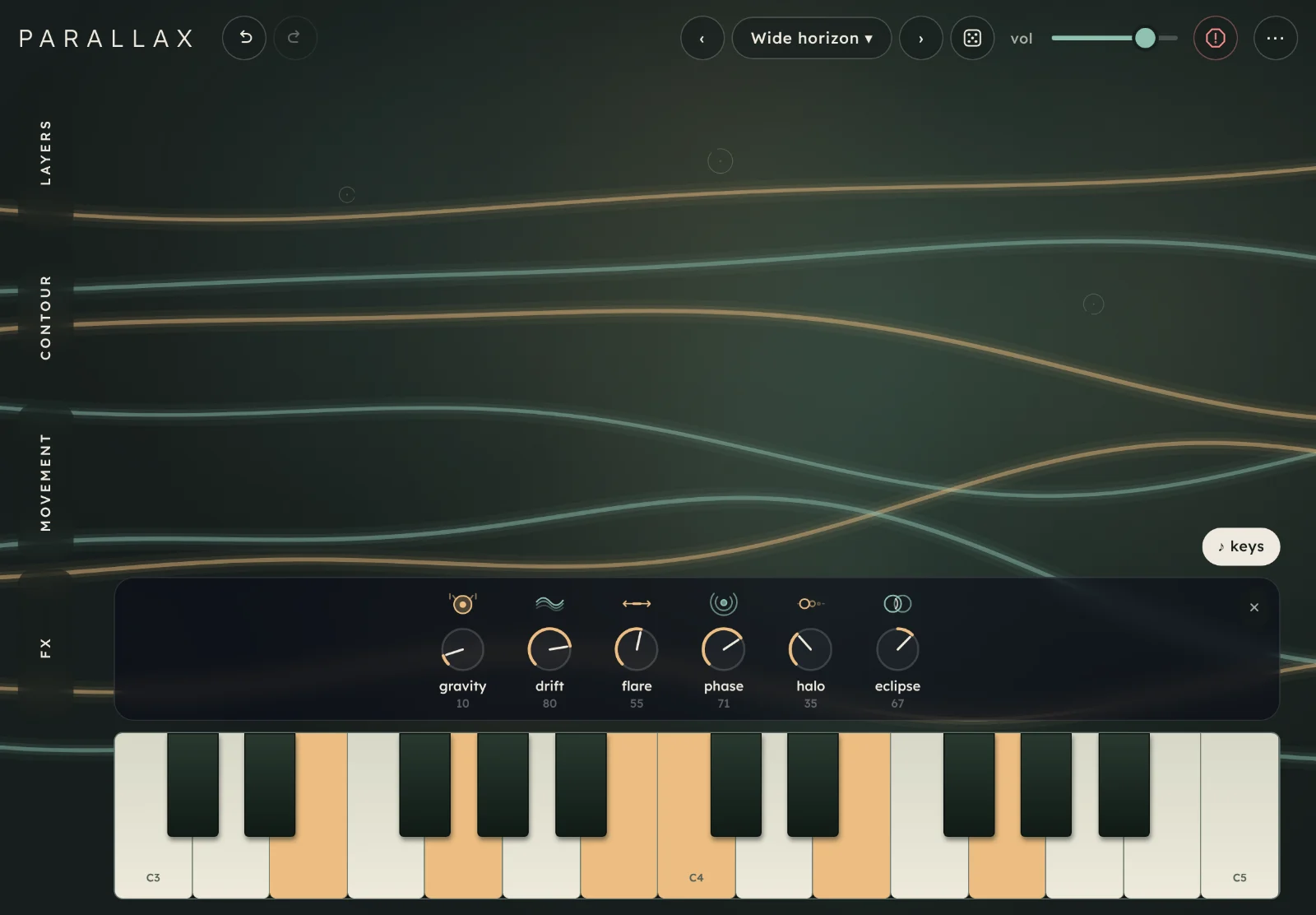
Parallax is a polysynth with two layers in every voice. Hold a chord, then move it with six expression controls and three rings, while each of its eight voices keeps a character of its own.
Start here
Five steps from opening Parallax to a chord you've shaped yourself. It runs in Chrome, Edge and Safari, on a computer or a tablet.
Open Parallax and tap begin. The first time, a three-screen intro shows you around; you can skip it. Browsers only allow sound after a tap or a key press, so nothing plays until you do.
Play a chord. Tap ♪ keys for a keyboard on screen and play a few notes together. Or play the computer keys awsed, a row of white and black keys from C.
Turn the dials. Six dials sit above the keys (tweak shows and hides them). Drag one up to turn it up. Try gravity for weight underneath and halo for a wider, longer space.
Drag a ring. Three small rings sit in the middle of the screen. Drag one towards an edge and the sound changes with the direction; drag it back to the middle to undo it. The rings never play notes.
Try the presets with ‹› at the top, or tap the preset's name to pick from six banks. The seventh, yours, holds the presets you save.
TipHold a chord before you change anything: most of Parallax is about how a held sound moves, and you can't hear that between notes. Undo (⌘Z) takes back any change, including a preset you loaded by mistake.
The screen
Controls on the left, the scene and the rings in the middle, the dials and the keyboard along the bottom. Everything on screen, numbered:
Tabs. Four tabs, alternating sage and amber. Tap one to open its drawer; tap it again, or ✕, to close it.
The drawer holds the open tab's controls. Its i shows a few short lines about the tab.
Undo and redo (⌘Z, ⇧⌘Z). They step back through slider moves, ring drags and presets.
Presets.‹› step through them, the name (First light here) opens the list, ⚄ picks one at random. More.
vol, the volume. Presets leave it as you set it.
Panic stops all sound at once, echoes and reverb included. So does esc.
⋯ has midi in (MIDI), hide tweak (or show tweak), hide ui, back up presets and restore presets… (your presets), a reminder of the keys (how to play), this guide, the intro and what's new.
A ring. Three of them, faint, in the middle of the screen. Drag them to shape the sound. More.
The scene. Eight lines, one per voice, amber and sage. A line brightens and thickens while its voice plays, and glows on for a moment after.
The dials, and tweak. The six expression controls, each with its symbol, above the keys, so you can turn them while you play. The tweak button shows them; their own ✕ hides them again. Drag one up to turn it up. More.
♪ keys shows or hides the keyboard.
The keyboard, two octaves from C3 to C5.
On a phone or a narrow window
At 900 px wide or less, undo, redo and the random preset button ⚄ move into ⋯. In a tall window the tabs go along the bottom and the drawer slides up from there, under the scene and the keyboard. In a tall window (a phone, or an iPad held upright) the drawer starts shut, so the dials are showing; open a tab and the dials (or the tweak button, if they were hidden) step aside, to leave room for the rings and the keys, and close the tab to get them back. In a window shorter than about 560 px (a phone on its side) the dials float over the foot of the middle of the screen, smaller, and a first visit there starts with them hidden; tweak shows them and ✕ hides them. Everything else is the same.
On a phone.
How Parallax works
Every voice has two layers. Each note you play sounds a clear layer and a soft layer at once. Each layer has its own waveform, tuning, drive, filter, and its own contours for brightness and loudness, so one can pluck while the other swells, or one can sit an octave above the other. layer balance blends them. The layers and contour tabs set them up, one layer at a time.
Eight voices, each a little different. Parallax plays eight notes at once, and every voice keeps small differences of its own in tuning, position, filter, timing and drive. voice variation sets how different they are, and wander lets each one drift slowly on its own path, so a held chord never sits quite still.
Your settings stay put; expression works on top. The six dials behind tweak each move several things at once (a sub, the filters, drive, the space), but they don't move the sliders on the other tabs. Set all six to 0 and you hear your settings as they are. Each preset sets how far the six reach, so the same move can sound different from one preset to the next.
The rings shape it with your hands. Three rings in the middle of the screen push the expression controls, brightness and layer balance, each in its own direction. Drag one out and the sound follows; bring it back to the middle and the change comes off again. More on the rings.
It moves, then the effects take it further. The movement tab has wander, slow oscillator motion and the cycle, a rise and fall that loops in every voice. Then the fx run in order: saturation, wavefolding, ring modulation, ensemble, echo, reverb and, last of all, tape.
Playing it
Three ways in: the computer keys, the keyboard on screen and a MIDI keyboard.
Computer keys
The middle row plays a white key on each letter and the row above plays the black keys, like a piano: a is C3, w C♯, s D, and so on up to ' (F, an octave and a bit up). z and x move down and up an octave, up to two each way; changing octave lets go of the notes you're holding. how to play in ⋯ shows the keys as a reminder.
♪ keys
Tap ♪ keys for two octaves on screen, C3 to C5. Play with several fingers. The keyboard does two things a key press can't:
Slide sideways to move from key to key without lifting.
Slide up a key to push into the note: the higher your finger, the more the filters open, the harder the voice is driven and the more of the soft layer you hear. It comes off when you let go.
On touch screens the keyboard is on to begin with; Parallax remembers whether you leave it on. Hiding it lets go of any notes it was holding.
The ♪ keys and tweak buttons, the dials, and two octaves, with a chord held.
MIDI
Plug in a MIDI keyboard and open ⋯ › midi in. The first time, the browser asks whether Parallax may use MIDI. Then pick all inputs or one device; off stops listening. The row in ⋯ shows what it's listening to. Parallax remembers your choice in that browser and connects again next time, and a device you plug in later is picked up when it arrives.
Every MIDI channel plays. The harder you play, the louder and brighter the note and the quicker it starts, and the notes light up on the keyboard on screen. All notes off and all sound off (CC 123 and 120) are panic. Pitch bend, the mod wheel, the sustain pedal and aftertouch don't do anything.
When you open Parallax again with MIDI already on, the browser still keeps it silent until you tap the screen or press a key on the computer keyboard. A note from the MIDI keyboard on its own can't start the sound.
BrowsersMIDI works in Chrome and Edge on a computer. Safari, and every browser on an iPad or iPhone, has no MIDI: there the row says not in this browser.
The rings
Three faint rings in the middle of the screen, for shaping a held sound with your hands. They never play notes.
The direction sets what changes, the distance sets how much. At the middle a ring does nothing; towards the edge it pushes harder. Up adds phase, right adds flare, down adds gravity, left adds halo. The corners add drift (top left), brightness (top right), eclipse above 50 (bottom right) and more of the soft layer in layer balance (bottom left). Between two directions you get some of each. There are no labels on screen; the territory you're in glows faintly.
The rings add to your settings. They turn those dials as you drag (watch the dials), on top of where they were when you started. Bring a ring back to the middle and its part comes off again. Loading a preset puts all three back in the middle.
Three rings, three fingers. On a touch screen you can drag all three at once, and each ring adds its own push. The rings stay where you leave them, and they're saved with your sound. A whole drag is one step for undo.
The rings are small and faint on purpose: they're there to be found by touch and by ear.
from the keyboard123 · arrows · Home
Select the middle of the screen first: press tab until it's outlined (clicking it doesn't select it). 1 to 3 pick a ring, the arrow keys move it (hold shift for small steps), Home brings it back to the middle and shift+Home brings back all three.
Hide ui
hide ui in ⋯ (or i) fades the controls away and leaves the scene. The sound carries on, the computer keys still play, and the rings still work across most of the screen. To bring the controls back, tap ⋯ in the corner, or press i or esc.
Hide ui: the scene, the rings and the ⋯ button that brings the controls back.
tweak six dials
Six dials above the keys, each moving several settings at once. They work on top of the tabs and never move their sliders.
The six dials, with the tweak button that shows and hides them.
gravity0 to 100
Weight underneath: a sub an octave below each note, steeper and darker filters, and more drive into them.
Play low with gravity high for a bass.
drift0 to 100
Lets every voice wander further on its own, in pitch, filter and timing, and makes the voices more different from each other. At the top, wander can reach 15 cents out of tune instead of 5.
flare0 to 100
Edge: more drive in each layer, more resonance, a brighter clear layer against a darker soft one, and tape saturation on the whole mix.
phase0 to 100
Brings in the cycle: a slow loop that moves the filters, the layer balance, the drive and the stereo width. In free mode, a cycle that's off starts at a slow pace of its own, and more phase runs it faster. It never changes your internal tempo.
halo0 to 100
Space: spreads the layers wider, adds ensemble, and pushes the reverb forward, into a larger, longer room, with less bass building up in it. Near the top the room takes over.
eclipse0 to 100, 50 in the middle
How the two layers relate. At 50 it does nothing. Above 50 they're drawn together: they wander and cycle as one, the soft layer's filter moves towards the clear one's, and more of the soft layer comes through. Below 50 they pull apart: they move against each other, the soft layer darkens, the clear layer comes forward and the two spread wider.
Both sides add some wander, so you can hear the relationship even on a sound that otherwise sits still.
Turning them. Drag a dial up or right to turn it up and down or left to turn it down, double-tap it for its resting value, or focus it and use the arrow keys (⇧ for small steps). Hover a dial for a one-line reminder of what it does. Each dial wears its symbol above it, amber and sage in turn. Eclipse rests at the top; the other five rest at the left.
Showing and hiding. The tweak button just right of ♪ keys, at the right end of the row above the dials, shows the dials; while they show the button is hidden (♪ keys stays at the right edge, above them), and the ✕ in the strip's corner hides them again (⋯ › hide tweak or show tweak does either). In a tall window they step aside while a tab is open (more). The rings in the middle of the screen push all six (see the rings).
layers tab 1
The clear and soft layers: how they mix, then each one's oscillator and drive.
mix
layer balance0 to 100
The blend between the layers: 0 is only the clear layer, 100 only the soft one.
sub level0 to 100
A sine an octave below each note you play. It follows the note, not either layer's transpose, so it stays put if you move a layer up an octave.
stereo width0 to 100
Spreads the two layers apart and lets the voices move around left and right, before the effects. Some of the sound always stays in the centre.
voice variation0 to 100
How different the eight voices are from each other, in tuning, position, filter, envelope timing and drive. Each voice keeps its own differences, and notes take turns across the eight voices, so even a repeated note comes out slightly different.
clear · soft
clearsoft
Pick the layer the sliders below belong to. The same switch is on the contour tab, and the two always agree.
oscillator
waveformsine, saw, then pulse
A smooth sweep: from a round sine through to a bright saw (the readout counts up to 99 saw), then from saw to a hollow pulse (0 pulse to pulse). The in-between settings have a character of their own.
fine tune−24 to +24 ct
Nudges the layer's pitch by up to a quarter of a semitone. A few cents between the layers gives a slow beating.
transpose−12 to +12 st
Moves the layer up or down in semitones, up to an octave each way. Put the soft layer at +12 st for an octave above every note.
layer drive
drive0 to 100
Drives the layer before its filter, so its harmonics are shaped by the filter after. Each layer has its own: clear layer drive and soft layer drive are separate sliders.
charactersat 100 to fold 100, blend in the middle
What kind of drive: rounder saturation to the left, sharper folding to the right, a mix of both at blend. It only does something when drive is up. Clear layer character and soft layer character are separate too.
contour tab 2
The filters, and how brightness and loudness move over each note. Two shared controls at the top, then three graphs for the layer you pick.
both layers
brightness0 to 100
Opens both filters together. They also follow the note, so high notes come out brighter.
input drive0 to 100
Saturates each voice on its way into the filters, which makes resonance bite harder.
Then clear or soft picks the layer, as on the layers tab. The other layer's curve shows faintly, dashed, behind each graph.
filter response
filter responsethe graph
The shape of the layer's filter, drawn for a held C4. Drag the handle sideways for cutoff offset, up and down for resonance. The line under it gives the cutoff in Hz.
cutoff offset−2.0 to +2.0 oct
Moves this layer's filter up or down against brightness, in octaves. A soft layer an octave darker than the clear one is a good start for pads.
resonance0 to 100
A peak at the cutoff. High settings sing.
slope0 to 100
How steeply the filter cuts: gentle at 0, steep and a little coloured at 100.
filter contour
filter contourthe graph · A D S R
How the filter moves over each note. Drag the first handle for attack, the second sideways for decay and up and down for sustain, the last for release. Time runs on a log scale, so short settings get room.
amount0 to 100
How far the contour opens the filter. At 0 the filter stays still. Each layer has its own: clear filter contour amount and soft filter contour amount.
attack · decay · sustain · release4 ms to 3 s · 50 ms to 4 or 6 s · 0 to 100 · 20 ms to 8 s
The filter contour's four stages as sliders. Decay reaches 4 s on the clear layer and 6 s on the soft one.
loudness contour
loudness contourthe graph · A D S R
The same graph for volume: how the layer arrives, settles, holds and fades.
attack · decay · sustain · release4 ms to 2 or 3 s · 20 ms to 4 or 6 s · 0 to 100 · 80 ms to 8 s
Sustain at 0 makes every note a pluck. The soft layer reaches further: attack up to 3 s and decay up to 6 s, against 2 s and 4 s on the clear one.
A note keeps sounding until both layers have faded, so a long soft release rings on after a short clear one.
soft swell0 to 100 · soft layer only
Below the soft layer's loudness contour. It slows the soft layer's attack (up to nearly twice as long) and opens its filter as it grows, so in a held chord the soft layer blooms in behind the clear one.
movement tab 3
How each voice moves over time: wander, oscillator motion and the cycle.
wander
amount0 to 100
Each voice moves slowly along a path of its own: a few cents in pitch (5 at most per layer), and a little in filter, waveform and layer balance. Each note's timing varies a touch too. No two voices move together.
layer link−100 to +100, free at 0
Whether the clear and soft layers move together. Plus links their wander and their cycles, minus sends them opposite ways, and free lets them go separately. It needs wander or the cycle to have anything to move.
oscillator motion
amount0 to 100
Slow detuning and pulse-width movement in the oscillators, for a sound that's never quite still.
cycle
cycle contourthe graph
One smooth rise and fall that loops in every voice. Drag the peak sideways to change rise / fall, up and down to change amount. While notes play, small dots show where each voice is in its loop: every voice starts at a different point.
amount0 to 100
How much the cycle moves its destinations. 0 turns it off.
rise / fall8 / 92 to 92 / 8
How the loop divides its time: a quick rise and a long fall, or the other way round.
freeinternal tempo
free runs the cycle at a rate, and the voices drift slightly apart in speed. internal tempo counts it in beats instead, at exact beat lengths. Each keeps its own settings when you switch.
rate0.03 to 6.00 Hz
In free mode, how often the loop comes round: from once every 33 s to six times a second. The line under the graph gives it in seconds too.
tempo40 to 180 BPM
With internal tempo on, the cycle's own tempo. It doesn't follow any other app or clock.
cycle length4 beats · 2 beats · 1 beat · ½ beat
How many beats one loop takes.
cycle destinations
filter cutoff−100 to +100
Moves both layers' filters with the loop: plus opens them towards the peak and closes them in the dip, minus the other way round.
layer balance−100 to +100
Leans the blend towards the soft layer at the peak and the clear one in the dip (plus), or the other way round (minus).
layer drive0 to 100
Adds drive towards the peak. It works even when the layers' own drive is at 0, so harmonics come and go with the loop.
stereo width0 to 100
Widens the voices towards the peak.
The phase dial works on the cycle too: it adds amount and destinations on top of what you set here.
fx tab 4
Effects on both layers, in the order they run, top to bottom. Set an effect's amount or drive to 0 to turn it off.
saturation
drive0 to 100
Saturates the two layers together, warm at first and gritty further up, before any other effect.
charactersmooth to 100 rasp
From a smooth, even saturation to a lopsided rasp with more even harmonics. Saturation character only does something when drive is above 0.
wavefolding
amount0 to 100
A harder, brighter edge than saturation, from folding the wave back on itself. Some of the clean sound always stays.
ring modulation
amount0 to 100
Adds metallic tones that don't follow the notes you play. Some of the dry sound always stays.
frequency20 to 1800 Hz
Ring modulation frequency tunes those tones. Low settings give a rough wobble; high ones, clangs.
ensemble
amount0 to 100
Six slowly moving copies of the sound, spread left and right, for a thicker, wider sound.
echo
amount0 to 100
Echoes that bounce between left and right.
time80 to 1200 ms
The echo time, the gap between repeats.
feedback0 to 100
How many repeats come back. High echo feedback makes long trails, each repeat a little softer and rounder.
tone0 to 100
Echo tone: darker repeats to the left, brighter to the right.
reverb
amount0 to 100
How much reverb you hear. Up to 60 it adds the reverb under the sound; above 60 the reverb takes over, and at 100 it's louder than the dry sound. The other six shape the room.
decay0.4 to 30.0 s
Roughly how long the tail takes to die away.
tone0 to 100
Darker settings let the top of the tail fade first; brighter ones keep it.
size0.50× to 5.00×
The size of the space. Bigger rooms also wait a moment longer before the tail starts, so it follows the note instead of blurring it.
chorus0 to 100
Gentle movement inside the tail.
chorus rate0.05 to 5.00 Hz
How fast that movement goes.
bass sustain0 to 100
How long the low end rings in the tail, below about 450 Hz. Turn it down on long, large spaces so the bass doesn't build up.
diffusion50 to 99
How fast the tail turns into a smooth wash. Lower settings build more gradually, with more of the first reflections.
tape
drive0 to 100
Tape saturation on the whole mix, after the reverb, with a softened top. It adds density and dirt rather than volume. Flare pushes it further.
Presets
27 factory sounds in six banks, and a yours bank for the ones you save. Each preset sets every control, the expression controls included. The factory ones put the rings back in the middle.
‹› (or []) step through the 27 factory presets, across the banks. They skip the ones you saved.
The name opens the list: banks on the left, the bank's sounds on the right, each with a line on what it is. It stays open while you try them; tap outside or press esc to close it.
⚄ (r) loads one of the 27 at random.
Loading a preset leaves vol alone, and undo takes you back to what you had.
Copper brass, Breathing copper, Reed cabinet, Bronze foundation, Living copper
slow space
Night water, Silk orchestra, Slow observatory, Dark tide, Wide horizon, Tidal rooms
motion
Chrome rain, Two horizons, Fractured light, Pulse pavilion
edge
Broken halo, Dust chamber, Hot geometry, Harmonic gathering
Open circuit is the reference: both layers, no expression, no effects but the saturation. It's a good place to start building a sound of your own.
Your sound and your presets
Parallax remembers the sound you're playing, edits and rings and all, and it's there next time you open it in the same browser. To keep a sound under a name, save it as a preset.
Your presets
Open the list and look under the banks: yours is the last one. It starts empty, and shows how many presets it holds.
save this preseta name of up to 48 characters
Type a name in the name it… field and press save (or enter). It keeps all 79 sound settings, the expression controls as you set them rather than as they sound, and where the rings are. It doesn't keep vol, the layer you're editing, MIDI or the keyboard octave. The field starts with the name of the preset you're playing, so saving again with that name replaces it. A new name adds another. To rename one, save it under the new name and delete the old.
A name a factory preset has, in any capitals, is refused: the list says "a factory preset has that name. pick another." Typing in the field plays no notes and runs no shortcuts.
yoursthe last bank
Your saved presets, in the order you saved them. Tap one to load it. It works like a factory row: the list stays open, the row lights up and the name shows at the top. Undo takes you back to what you had, though the name stays in the list.
Moving with ‹›, [] or ⚄ goes to the factory presets, not to yours.
✕on each row in yours
Deletes that preset at once, with no question first, and says deleted and its name. Undo doesn't bring it back, so back up first if you might want it.
back up presetsin ⋯
Saves everything in yours to one file, named parallax-presets-backup and the date, in your downloads. Its number is how many you have. With none saved, it tells you so instead.
restore presets…in ⋯
Pick a backup file to add its presets to yours. A preset you already have is skipped. One with the same name and a different sound is added with a 2 after its name. A file from another app, or any other file, is refused and nothing changes. This is also how to move presets to another browser or device: back up on one, restore on the other.
Where they liveYour presets are kept in this browser, on this device. A private window, another browser, or clearing the site's data starts without them, so back them up now and then. If the browser can't store them, the list says "saved for this session; browser storage is unavailable" and they last until you close the page.
Recipes
Starting points. Each begins from a preset; hold a chord on the keys while you work.
You hear a short clear pluck, then the soft layer swelling in behind it and ringing on after you let go. To put the soft layer an octave above the pluck, set its transpose to +12 st.
A pad that breathes on its own
Load Wide horizon and hold Am9.
movement: cycle amount 60, rise / fall 70 / 30, rate 0.08 Hz.
The chord opens, widens and leans into the soft layer about every 12 seconds, each voice at its own point in the loop. Set layer link to −60 and the two layers breathe against each other.
Filters on the beat
Load Open circuit.
movement: internal tempo, tempo 120 BPM, cycle length 1 beat.
Cycle amount 80, rise / fall 15 / 85.
filter cutoff +90, layer drive 40.
Every held note snaps open on each beat and falls back, with a little grit on top. Try cycle length ½ beat, or load Pulse pavilion for a finished version at 108 BPM.
Brass that grows an edge
Load Copper brass and hold D minor.
The dials (tweak): bring flare slowly from 0 to 70.
gravity 50.
fx: tape drive 30.
The chord gets brighter and rougher as flare comes up, with weight underneath from gravity. Pull flare back down and it's polite again; your other settings never moved.
Three fingers on a held chord
Load Night water and hold Fmaj7.
Drag one ring up and left, towards drift.
Drag a second straight left, towards halo.
Drag the third straight down, towards gravity.
The chord loosens, grows into a bigger space and gets heavier underneath, all from your hands. Move the rings slowly while it plays; shift+Home on the rings puts all three back in the middle.
Bells an octave apart
Load Open circuit.
layers: both layers' waveform to sine; soft transpose +12 st.
fx: ring modulation amount 20, frequency 660 Hz; reverb amount 30.
Each note is a struck bell whose upper octave fades first, with a metallic glint. Raise ring modulation for a harsher, gong-like clang.
Shortcuts
Also in ⋯ › how to play. On sliders: drag (hold shift for fine), double-tap to reset, scroll, or use the arrow keys.
Key
Does
aws … '
play notes, from C3
zx
octave down, up
[]
previous, next preset
r
random preset
⌘Z⇧⌘Z
undo, redo (Ctrl on Windows)
i
hide ui, show it again
esc
close a menu, then leave hide ui, then panic
123
with the middle of the screen selected: pick a ring
arrows, shift+arrows
move that ring, in big or small steps
Home, shift+Home
centre that ring, centre all three
In this guide, / jumps to find.
On iPad planned
An iPad version of Parallax is planned. Until it's out, play the web version in Safari on an iPad: the touch keyboard and the rings all work with your fingers. A MIDI keyboard doesn't: Safari has no MIDI.
Tips and limits
In a browser
MIDI works in Chrome and Edge on a computer, not in Safari or on an iPad. Pitch bend, the mod wheel, the sustain pedal and aftertouch don't do anything.
Sound starts only after a tap or a key press on the computer keyboard. A MIDI note on its own can't start it.
Your sound, and the presets you save, are stored in that browser on that device. To move presets to another, use back up presets and restore presets… in ⋯. There are no share codes.
The web version can't record what you play. Record your computer's output in another app.
On an iPad or iPhone, the silent switch or Control Centre's mute can silence the browser.
Playing
Eight notes at once. A ninth takes the voice of the oldest note you've let go of or, if all eight are held, the oldest note.
Only MIDI has velocity: the computer keys and the keyboard on screen play every note at the same strength. Slide up a key on the touch keyboard for more.
The cycle's internal tempo is its own and doesn't follow other apps.
Volume stays as you set it when you change preset.
With your system's reduce motion setting on, the scene stops drifting on its own but still lights up with what you play.
If it stutters
Close other tabs and apps, and play fewer notes at once.
Long reverbs and heavy echo feedback keep voices busy after you let go. Panic clears them.
Questions
I can't hear anything
Tap begin (or any key): browsers stay silent until you do. Check vol at the top, your device's volume and, on an iPad or iPhone, the silent switch or Control Centre's mute. Then play a note. Dragging the rings on its own makes no sound: they shape notes, they don't play them.
If it played before and has stopped, panic (esc) and play again, or reload the page.
My MIDI keyboard does nothing
Open ⋯ › midi in, pick all inputs or your keyboard, and allow MIDI if the browser asks. MIDI works in Chrome and Edge on a computer; Safari, and the browsers on an iPad or iPhone, have none. If the row says blocked, you said no when the browser asked: allow MIDI for this site in the browser's site settings and reload. Until then, play from the computer keys (a to ') or tap ♪ keys for the keyboard on screen. More on MIDI.
A sound won't stop
Press panic or esc for a hard stop. Long fades can come from the soft layer's release, high echo feedback or a long reverb decay.
The rings turn them, and move brightness and layer balance too. Drag the rings back to the middle (or shift+Home with the middle of the screen selected) and the dials go back to where you set them.
I loaded a preset and lost my sound
Press undo (⌘Z) straight away: it takes you back to the sound you had. Next time, save it first: type a name under save this preset and press save. It goes in yours, and loading another preset won't touch it.
Does it work offline?
Once it has loaded, it doesn't need the internet: nothing is sent anywhere, and it makes no network requests.
Can I record what I play?
Not inside the web version. Record your computer's output with an audio app.
Parallax is inspired by Deckard's Dream and Katla, without copying either.
The reverb is JPverb by Julian Parker, with fixes and interface work by Till Bovermann (MIT licence), compiled unchanged from the Faust libraries by GRAME, which include filter helpers by Julius O. Smith III.