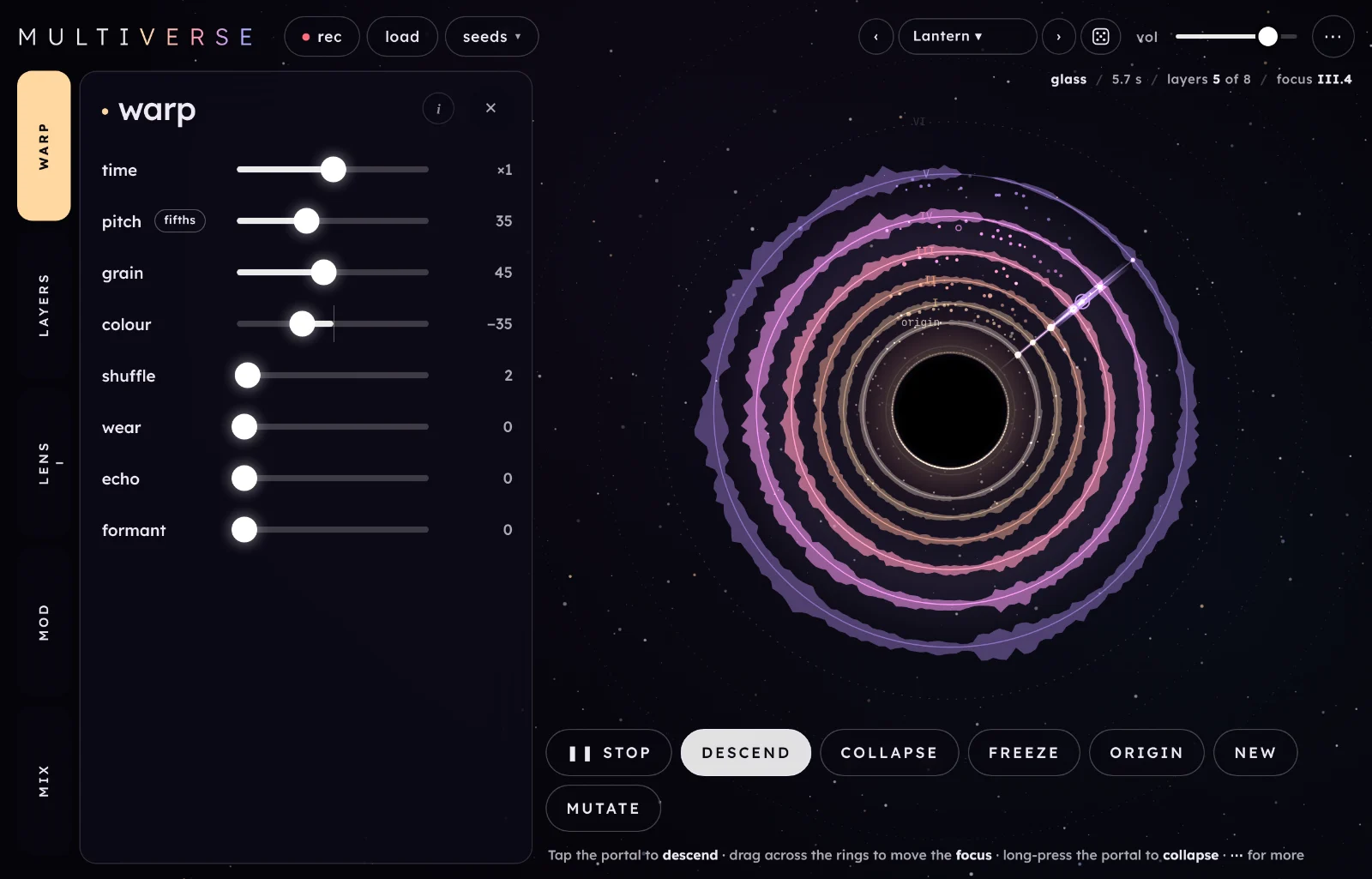
Multiverse is a looper that grows new layers from one sound. Each layer plays back the one before it through the same rules, so the deeper you go, the further the loop moves from where it started.
Start here
Five steps from opening Multiverse to a stack of layers you can listen through. It runs in Chrome, Edge and Safari, on a computer or an iPad.
Open Multiverse and tap begin. The first time, a short intro shows you round; you can skip it. Browsers only allow sound after a tap or a key press, so nothing plays until you do.
Drop a sound into the portal. Tap glass, pulse or hymn under the portal for a built-in sound, or rec to record one, or load a file. It starts looping. This first loop is the origin.
Tap the portal (the black circle) to descend. A new ring appears: layer I, playing back the origin through the rules on the warp tab. Tap three or four more times; each new layer plays back the one before it.
Drag across the rings to choose what you hear. Near the portal is the origin; further out are the deeper layers. The lens tab has the same control as a slider, focus.
Step through the presets with ‹› at the top. Each one changes the rules the layers use, and keeps your sound.
TipLong-press the portal to collapse: the deepest layer goes, and you can descend again from there. origin glides your focus back to the sound you started with.
The screen
Controls on the left, the portal and its rings on the right. Everything on screen, numbered:
Tabs. Five tabs, each in its own colour. Tap one to open its drawer; tap it again (or z) to close it. A small line on a tab means drift or a mod is moving something on it.
The drawer holds the open tab's controls. Its i shows a few short lines about the tab; ✕ closes it.
rec, load and seeds: the three ways to put a sound in the portal. More.
Presets.‹› step through them, the name opens the list, the die rolls a random universe. More.
vol, the output level, 0 to 100. Presets leave it alone.
⋯ has new universe, mutate, the universe history, back up presets, restore presets, hide ui, how to play, this guide, the intro and what's new.
The readout: the sound's name, the loop length, layers 5 of 8, where your focus is, and frozen while freeze is on.
The portal. Tap it to descend, long-press it to collapse.
The rings, one per layer, from the origin next to the portal out to the deepest. Drag across them to move your focus; a small ring on the sweeping arm marks where you're listening. More.
The action bar: stop, descend, collapse, freeze, origin, new and mutate. More.
The hint line says what the portal does, or what the control under your finger does.
On a phone or a tall window
In a window taller than it is wide (an iPad held upright, say), the tabs move to the bottom and the drawer slides up from there, under the portal. In a window narrower than 900 px, load, seeds and the random die move into ⋯.
On a phone the header takes two rows and the readout is hidden. The action bar keeps five buttons, so new and mutate are only in ⋯, as new universe and mutate.
On a phone.
How Multiverse works
Every layer plays back the one before it. You start with one loop, the origin. Each time you descend, Multiverse adds a layer that keeps playing back the layer before it: grain by grain, through a set of rules called the warp. Layer I plays back the origin, layer II plays back layer I, and so on, up to eight layers. The rules are on the warp tab: time, pitch, grain size, colour, shuffle, wear, echo and formant.
The changes build up. Because each layer applies the same rules to something that has already been through them, the effect grows with every step. If time is ½, layer I plays the first half of the origin across the whole loop, layer II the first quarter, layer III the first eighth: you zoom further into the first moment. Every layer is still one loop long, so they all stay in time with each other. The layers tab sets how strongly the rules apply, how much they vary from layer to layer, and how fast each layer keeps rewriting itself.
The layers never stop changing. Each layer keeps reading the one before it on every pass, so a change in one layer works its way out through the layers after it. Flux sets how much of a layer gets rewritten each time round; freeze holds them all.
You choose where to listen. All the layers play at once, but the focus decides which ones you hear: one layer, a few around it, the newest with the origin underneath, or all of them stacked. Drag across the rings, or use the lens tab. The faders on the mix tab have the last word on each layer's level.
A universe is a starting number. The small differences between one layer's rules and the next are random, but they come from a universe, shown as a code like U·1A47. The same universe with the same settings always gives the layers the same rules. new picks another universe and keeps the warp; mutate nudges the warp and keeps the universe.
Playing it
You play Multiverse by choosing what goes into the portal, how deep you go, and where you listen. There's no keyboard to play notes on.
Putting a sound in
Whatever you put in becomes the origin, and the loop is as long as the sound. A new sound starts again at the origin only: the old layers go, and nothing grows back until you descend (or bloom is on). Your settings stay.
seeds glass · pulse · hymn
Three built-in sounds. glass is a glassy arpeggio in D with clear attacks, 5.7 s long. pulse is a drum loop (kick, clap, hats and bass), 4.6 s. hymn is two slow chords and a line, 8 s, good for drones and long descents. Before you've chosen a sound, they're under the portal too.
rec ⇧r
Records from the microphone. Tap again (it reads stop) to finish; it stops on its own at 16 s. The readout counts the time. Silence at either end is trimmed and the ends are blended so the loop doesn't click. A take under about half a second, or too quiet, is thrown away.
The browser asks for the microphone the first time. Multiverse opens it only while you record.
load
Opens an audio file. You can also drag a file onto the window and drop it anywhere (let it fall in). Multiverse uses the first 16 s, trims silence at the ends and blends the join. Very short files (under 0.3 s) and very large ones are refused.
On the portal and the rings
Do
What happens
Tap the portal
Descend: add the next layer. With no sound yet, it opens the seeds.
Long-press the portal (about half a second)
Collapse: remove the deepest layer.
Drag across the rings
Move the focus: towards the portal for the origin, outwards for deeper layers.
Multiverse can carry on without you. bloom descends every few loops on its own, drift moves your focus through the layers, and the mods move other controls slowly. Turn on all three, then hide the ui, and the loop keeps growing and changing.
MIDI
Multiverse doesn't use MIDI: there are no notes to play, and nothing to sync. Its timing comes from the loop itself. The keys on your computer keyboard are shortcuts.
BrowsersRecording needs microphone permission, and the page must be on a secure (https) address or your own computer. Opened from a file, everything else works but the microphone may not.
The portal
The right-hand side of the screen: the portal, its rings and the buttons below them.
The action bar
stop space
Fades the sound out and stops the loop, everywhere at once. It then reads ▶ play, and play picks up where it stopped.
descend d
Adds the next layer: it starts playing back the deepest layer you have. If you were listening at the deepest layer, your focus glides on to the new one. A ring flares out from the portal as it arrives.
When all eight layers are there, descending again moves the stack along: layer I leaves, the others each move in one place (so the old layer II now plays back the origin), and a new VIII arrives. The origin always stays.
collapse c
Removes the deepest layer. If your focus was on it, it glides back to the new deepest one. Also a long-press on the portal.
freeze h
Holds every layer as it is: they stop rewriting themselves and the rings stop turning, but the loop keeps playing. The readout says frozen. Tap again to let them change.
Freeze a moment you like before you try new or mutate: the layers keep what they have until you release it.
origin 0
Glides your focus back to the origin over about a second and a half. The layers keep playing; you hear the sound you started with.
new n
A new universe: the same warp with new small differences between the layers. The layers move into it as they rewrite themselves, so the change takes a few loops, and none while frozen. Each new universe is kept in the history.
On a phone it isn't in the action bar: it's new universe in ⋯.
mutate m
Nudges the warp: pitch, grain, colour and shuffle move a little, time sometimes moves a step, pitch sometimes gets new intervals, and wear, echo and formant move if they're already on. Controls you've locked stay put. It keeps the universe, and goes in the history too.
On a phone it isn't in the action bar: it's mutate in ⋯.
Reading the rings
Six layers deep. The focus is the small ring on the arm.
Each ring is a layer, labelled origin next to the portal, then I to VIII going out. Its colour runs from pale gold at the origin to cyan at the deepest, and it carries the layer's own waveform as it plays. A faint ring outside the last one is where the next layer will go.
The arm sweeps round once per loop, from the top: it's where the loop is now.
Threads between rings show where each layer is reading the one before it right now, and sparks are grains in flight.
The focus is the small ring on the arm. A glowing band around it shows breadth, and a tail back towards the origin shows linger. When drift is moving the focus, a dotted line joins it to where you set it.
The hint line and the readout
Under the action bar, the hint line says what the portal does. While you touch or hover over a control, it explains that control instead. The readout at the top right gives the sound's name, the loop length, layers 5 of 8, the focus (focus III.6 means between layers III and IV) and frozen. While you record it shows ● recording and the time.
hide ui
hide ui: only the portal.Before you've chosen a sound.
hide ui i
In ⋯. The controls fade and the portal glides to the middle of the screen. It still plays: tap to descend, long-press to collapse, drag the rings. Two fingers, i or esc bring the controls back.
warp tab 1
The rules each layer uses to play back the one before it. Every rule builds up layer by layer. Depth, on the layers tab, sets how strongly they apply, except time, which always applies as set.
time¼ ⅓ ½ ⅔ ¾ ×1 4:3 3:2 ×2 ×3 ×4
How fast each layer moves through the one before it. ×1 follows along. Below ×1 it stretches: ½ plays the first half of the layer before across the whole loop, so you zoom into the start. Above ×1 it repeats: ×2 plays it twice per loop. It compounds: ½, then ¼, then ⅛.
3:2 and 4:3 turn one loop into polyrhythms that grow with each layer.
pitch0 to 100
The chance that a grain is transposed by one of the intervals on the chip beside it. At 0 nothing moves; higher, more grains jump. The intervals add up layer by layer, so a fifth becomes two fifths, and every layer stays in key.
the pitch chipunison · octaves · fifths · fourths · 5th+oct · minor · major · cluster
The set of intervals pitch uses. Tap it for the next set (shift-tap for the one before). unison doesn't transpose at all; cluster moves by one and two semitones for a smeared, close sound.
grain0 to 100
The size of the grains each layer is made from. Low: long, faithful grains that keep the shape of the sound. High: fine, scattered dust.
colour−100 to +100
Each layer darkens (−) or thins (+) the one before it, so the deep layers end up muffled or glassy. 0 leaves the tone alone.
shuffle0 to 100
The chance that grains play backwards or swap slices of the loop. A little roughs up the rhythm; a lot cuts it up.
wear0 to 100
Each layer is a worn copy of the one before: fewer bits, a lower sample rate, a little hiss and wow. It builds up like tape copied from tape. At 0 it's off.
echo0 to 100
Each layer echoes itself a rhythmic fraction of the loop later, so repeats of repeats multiply further out. Each layer picks its own echo time. At 0 it's off.
formant0 to 100
Each layer adds a resonant peak of its own that sweeps with the loop. Across the layers they stack into vowel-like colour. At 0 it's off.
locks
tap a name to lock it
Every warp control can be locked: tap its name. mutate then leaves it alone. Locking pitch keeps its intervals too. Locks stay when you change preset.
Lock time and pitch, then mutate a few times: the rhythm and harmony hold while the texture changes.
layers tab 2
How each new layer differs from the one before, how fast they change, and whether they grow on their own.
depth0 to 100
How far each layer moves from the one before. At 0 the layers are near-copies of the origin (time still applies); at 100 the warp applies at full strength. Depth also spreads the deeper layers wider in the stereo field.
Turn depth down to hear the warp gently; most of the factory ambient presets sit between 25 and 40.
mutation0 to 100
How much each layer's own rule varies from the last. At 0 every layer applies exactly the same warp. Higher, each layer's grain size, pitch, colour and timing wander further, and the loop's start point can shift. The variation comes from the universe, so it comes back the same.
flux0 to 100
How fast every layer keeps rewriting itself from the one before. At 0 a layer stays as it was first written; at 100 it's rebuilt on every pass. This is how changes travel down the layers.
bloomoff · ÷16 · ÷8 · ÷4 · ÷2 · ÷1
Descends on its own: ÷16 adds a layer every 16 loops, ÷1 every loop. When all eight layers are there it keeps going: layer I leaves, the rest move in one, and a new VIII arrives.
Bloom at ÷16 with drift on is a loop you can leave running for an hour.
The tab's i also mentions freeze, which lives in the action bar.
lens tab 3
Where you listen across the layers: one, a few, or all of them.
profileten shapes, or custom
Jumps to a listening shape in one tap: focus, breadth, linger, anchor and drift glide there together over about a second. The button shows the profile you're in, or custom once you move one of those controls yourself. The shapes are listed below.
focusorigin to the deepest layer
Which layer you listen to. Its range grows as you descend, and it can sit between two layers (III.6) to hear a blend. Dragging across the rings does the same thing. Presets don't change it.
While drift is on, the slider and its number stay where you set the focus. A small ring on the slider, the arm on the portal and the readout show where drift has taken it.
breadth0 to 100
How many neighbouring layers you hear around the focus. Narrow is one voice; wide is a smear of several. Scrolling over the portal side of the screen sets it too.
linger0 to 100
Whether the layers behind your focus stay. At 0 they all stay under it and stack up; at 100 they fade as you go deeper, so you hear only where you are. In between, each step back is a little quieter.
Linger low and the focus on the newest layer turns a descent into a slowly thickening stack.
anchor0 to 100
Keeps a thread of the origin under everything, however deep you go. It's the least the origin can be; the lens can make it louder.
drift0 to 100
Moves the focus through the layers on its own. 0 is still; higher swings further either side of where you set the focus. Its shape and speed are directly below it. A line on the lens tab and a dot by focus show it's on.
The focus slider doesn't move while drift does: watch the small ring on it, or the arm on the portal.
How the focus moves: smoothly back and forth (∿ sine, ⋀ tri), flipping between two places (⊓ square), a ramp outwards (⟋ saw ↑), a jump to a new layer each cycle (⁘ s&h, which always lands on a whole layer), or a glide between random places (〰 wander).
syncon / off
Locks drift to the loop, so it lands in time. Then drift every replaces drift rate.
drift rate200 s to 2.6 Hz
How fast the focus drifts: one cycle every so many seconds, or several a second at the top.
With sync on: one drift cycle every this many loops.
The profiles
Profile
What you hear
origin
Only the origin, the loop you started with.
newest
Only the newest layer. It follows each descent.
recent
The newest two or three layers; older ones drop away.
ends
The origin and the newest together, nothing in between.
all
Every layer at the same level.
newest → origin
Newest loudest, tapering back to about a quarter at the origin.
origin → newest
Origin loudest, tapering towards the newest.
drift
The focus wanders slowly through the layers on its own.
sweep
The focus glides from the origin to the newest and back, once every 8 loops.
hop
The focus jumps to a random layer on every loop.
The last three also set drift's shape and timing. The mix faders still apply on top of any profile.
mod tab 4
Slow modulators: three to start, up to six. Point one at a control and it moves it for you.
Each row is one mod. When it's on, the control it moves shows a ring where its value is right now, and the tab that control lives on gets a line. All three start off.
on / off1 to 6
Off keeps its settings, so you can hear a sound with and without it.
shapesine · tri · square · saw ↑ · s&h · wander
The same six shapes as drift: ∿ sine, ⋀ tri, ⊓ square, ⟋ saw ↑, ⁘ s&h (a new random value each cycle) and 〰 wander (glides between random values, so it never repeats).
→ destination
What it moves, grouped by tab. warp: pitch, grain, colour, shuffle, wear, echo, formant. layers: depth, mutation, flux. lens: focus, breadth, linger, anchor. mix: space. Time, bloom and the pitch chip can't be moved by a mod.
syncon / off
Locks the mod to the loop; rate becomes every.
rate200 s to 2.6 Hz
How fast it cycles when it isn't synced. Slow rates, from ten seconds to a few minutes, suit Multiverse best. A mod on a warp control reaches the layers as they rewrite themselves, so flux sets how soon you hear it.
every8 loops to ¼ loop
With sync on: one cycle every this many loops.
depth−100 to +100
How far it moves the control, either way round: left of centre moves it the other way. 0 in the middle does nothing.
✕
Removes the mod; the ones below it move up. There's always at least one.
+ add a modup to 6
Adds a mod under the others, already on and pointed at a control no other mod is moving. At six it greys out.
randomise
Sends every mod somewhere new: a new shape, rate (or every), depth and destination for each, most of them on and no two on the same control. It keeps the number of mods.
The random universe (r) leaves the mods alone, so you can keep a set of mods you like while you try universes.
Each mod starts with a suggestion you can change: mod 1 is ∿ sine → grain, mod 2 ⋀ tri → colour and mod 3 〰 wander → breadth. Presets hold the mods as they are, how many there are included, and the factory presets have three, all off.
mix tab 5
One fader per layer, and the room around them all.
0, I … VIIIone fader per layer
Each layer's level, from the origin (0) out to VIII. They have the last word: a layer at zero is silent, whatever the lens says. Layers you haven't grown yet are dimmed.
The bright line inside each fader shows how much of that layer you're hearing now, from the lens. Drag up or down; double-tap to put a fader back to full.
Pull the origin's fader down to hear only what grew from it.
out
space0 to 100
A room around all the layers. At 0 it's dry; turned up, more of the sound goes into a soft reverb.
vol0 to 100, in the header
The output level. It's in the header, not the tab, and presets leave it alone.
Presets and sharing
Twenty factory universes in four banks, from gentle to wild: ambient loops, drifting, rhythmic and scattered. Your own go in yours, and every universe you've visited is in history.
‹› ([]) step through every preset, factory then yours. The name opens the list: pick a bank, then a preset. A fresh start reads init.
The search line on top finds a preset by name in every bank. The star beside a preset puts it in a starred bank at the top of the list, in this browser only; tap it again to take it off.
The die (r) rolls a random universe: it picks a point between ambient and scattered, then sets the warp, layers and lens controls around it. The message says how far along it landed.
A preset changes the rules, not your sound: whatever is in the portal keeps playing, and your layers stay.
What a preset holds
The universe, every control on warp, layers, lens, mod and mix (including the faders), and drift's shape and speed. It doesn't hold your sound, the focus, vol or your locks.
Universes and history
The top of the list shows the universe you're in (U·1A47). The history bank keeps the last 24 universes you've been in: each new, mutate, random roll and preset load adds one, marked with a colour and what made it. Tap one to go back to its universe and settings. universe history in ⋯ opens the same list.
Saving
Type a name (up to 32 characters) under save this preset and press save. Saving with the same name again overwrites it. Factory names are taken. Your presets are in yours.
Where they liveYour presets and history are saved in this browser, on this device. Clearing the site's data or using a private window loses them, so back up presets (in ⋯) now and then to keep a copy.
Sharing
copy code
Copies the current preset as a line of text starting multiverse1.. Paste it into a message, a note, anywhere. Someone who loads it hears your rules on their own sound.
paste code
Paste a code and press load code to hear it. Anything missing falls back to the default, and anything out of range is brought back into range.
export file
Saves all your presets as multiverse-presets.json. With none saved yet, it exports the current one.
import file
Adds the presets from a file. Ones with the same name are replaced; ones named like a factory preset are skipped.
back up presets
In ⋯. Saves every preset you've made to one file, multiverse-presets-backup-YYYY-MM-DD.json, and says backed up 4 presets when it's done. Its number is how many you have. With none saved it says nothing saved yet. Unlike export file, it only holds yours, and it's the one to keep or send.
restore presets…
In ⋯. Opens a file picker for a backup. Presets already saved are left alone and counted as skipped. One with a name you already use but different settings comes in as name 2, and a factory name is skipped. A file that isn't a Multiverse backup changes nothing. Import file reads a backup the same way.
Recipes
Starting points. Most start from a seed so you can follow along; try them on your own sounds after.
A slow stack from one chord
Tap hymn, then load the preset Still Water.
Descend five times.
lens: profile all, then anchor 40.
mix: space 70.
You hear the chords in near-copies laid over each other, slightly darker and blurred, with the origin clear underneath. For more movement, set flux to 60 on the layers tab.
Zooming into the first moment
Tap glass, then load Zoom (in drifting).
Descend six times, one tap per loop.
lens: profile newest.
Press origin, then drag slowly outwards across the rings.
Each layer stretches the first half of the one before, so going out you hear the opening notes slow to a smear. Set time to ⅓ for a faster zoom.
Polyrhythms from one drum loop
Tap pulse, then load Polymeter (in rhythmic).
Descend three times.
lens: profile all.
Lock time, then mutate until the texture suits you.
You hear the beat at 3:2, then 9:4, then 27:8 against the origin, all inside one loop. Try time at 4:3 for a different lattice.
A loop copied from tape to tape
Tap glass, then load Still Water.
warp: wear 60, pitch 0.
layers: depth 70.
Descend six times, then lens profile newest → origin.
Each layer is a more worn copy: grittier, duller and wobbling. Add echo 40 for repeats that wear out as they go.
A loop you can leave running
Tap hymn, then load Slow Bloom.
Descend four times.
lens: profile sweep.
mod: turn on mod 3 (〰 wander → breadth), rate about 60 s.
⋯ › hide ui (or i).
Your focus sweeps out through the layers and back once every 8 loops, while breadth slowly widens and narrows. A new layer arrives every 16 loops, and once all eight are there, the oldest gives way to a new one. For something busier, try bloom ÷4 and the profile hop.
Variations on a universe you like
Find a universe you like, and save it under a name.
Lock the controls you want to keep (tap their names on warp).
Press mutate (m) a few times, or new (n) for new differences between the layers.
Open the history and tap back through what you've heard.
The locked rules hold while the rest shifts, and every step is in the history to go back to. Save the ones worth keeping.
Shortcuts
Also in ⋯ › how to play. On sliders: drag (hold shift for fine), double-tap to reset, scroll, or use the arrow keys.
Key
Does
space
stop or play
d or enter
descend
c
collapse
h
freeze, on or off
0
glide the focus back to the origin
n
new universe
m
mutate
1 to 6
mod 1–6 on or off
⇧r
record, or stop recording
r
random universe
[]
previous, next preset
z
open or close the drawer
i
hide ui, show it again
esc
close a menu, or show the ui again
In this guide, / jumps to find.
On iPad planned
An iPad version of Multiverse is planned. Until it's out, the web version runs in Safari on an iPad, with touch throughout: everything in this guide applies, and Tips and limits says what's different in a browser.
Tips and limits
The loop
Up to eight layers plus the origin. After that, descending moves the stack along.
The loop is as long as your sound, up to 16 s, and every layer shares that length.
Your sound isn't saved: after a reload, put it in again. Settings, presets and history come back.
Sparse sounds can get quiet deep down, especially when time zooms in on a gap.
In a browser
Sound starts only after a tap or a key press.
Recording needs microphone permission and a secure (https) page. The browser asks the first time you tap rec.
Your presets and history are stored in that browser on that device. Export a file to keep them.
The web version can't save what you hear. Record your computer's output in another app.
No MIDI, and no tempo to sync to: timing comes from the loop.
If it stutters
Every layer adds load. Collapse the layers you aren't listening to.
Close other tabs and apps.
Questions
I can't hear anything
Tap begin: browsers stay silent until you do. Then check there's a sound in the portal (tap a seed), that the loop isn't stopped (space), vol at the top, and your device's volume. On an iPad, check the silent switch and Control Centre's mute.
If the loop plays but a layer is silent, look at its fader on the mix tab, and at the lens: with linger at 100 and breadth low, only the layer at the focus sounds.
Tapping the portal doesn't add a layer
With no sound in the portal yet, a tap opens the seeds instead. While you're recording, descend waits until you stop. A press that lasts more than about half a second collapses instead of descending.
Recording doesn't work
Allow the microphone when the browser asks; if you said no, allow it in the site settings and reload. The page needs a secure (https) address. A take that's too short or too quiet is thrown away, with a message saying so; record for at least a second.
My file is cut short, or won't load
Multiverse uses the first 16 s of a file. It refuses files shorter than about a third of a second, and very large ones (over 25 MB, or 150 MB for WAV and AIFF). If it can't read the format, it says so; try a WAV.
The sound keeps changing by itself
That's the layers rewriting themselves (flux), drift moving the focus, bloom adding layers, or a mod. Press freeze to hold the layers; set drift to 0 to keep the focus still.
What happens after eight layers?
Descending again moves the stack along: layer I leaves, every other layer moves in one place, and a new layer VIII arrives. The origin always stays.
Does a preset keep my sound?
No. A preset holds the rules and settings, and plays on whatever sound is in the portal. That's why a shared code sounds different on someone else's recording.
My presets have gone
They're stored in the browser you made them in, so they won't appear in another browser, a private window or another device, and clearing site data removes them. Use back up presets (in ⋯) to keep a copy, and restore presets to bring them back.
Can I record what Multiverse plays?
Not inside the web version. Record your computer's output with an audio app.
Does it work offline?
Once it has loaded, it doesn't need the internet: nothing is sent anywhere, and it makes no network requests.